In this article:
Parental Control and how it works
Parental Control is a feature which helps to protect your family from being exposed to content they may not be ready for.
As a responsible broadcaster we adhere to the Broadcasting Standards and Practices, this means that any R18 programme that is aired before 8.30pm requires a PIN.
You, as the account holder, will need to decide whether you want to setup Parental Control or not. And as the account holder, you are in control of which rating level is appropriate to be viewed by anyone, and anything above this rating will trigger a PIN entry message in order to continue.
Important:
- Sky Parental Control will be temporarily disabled when your internet goes down, meaning any previously blocked content classifications may be accessible.
- When a content is selected to play, Parental Control feature will ensure there is nothing rated above your selected rating in the next 3 hours. If there is, you’ll need to enter your PIN
Manage/setup Parental Control
To manage or set up Parental Control, follow the instructions for the specific device you have at home:
New Sky Box and Sky Pod
The new Sky Box and Sky Pod parental setting share the same setting as your Sky Go. If you haven't set this up yet then follow the steps below to enable/disable Parental Control and Allow Content by Rating.
Note: Parental PIN will not be available in My Hub if your internet connection is lost.
Enable/disable Parental Control:
- Using the Sky remote control, press the 'My Hub' button
- Navigate and select 'Parental PIN'
- Navigate down to 'Sky Parental Control'
- Press 'OK' on the remote to either enable/disable parental control.
Allow content by rating:
- Using the Sky remote, press the 'My Hub' button
- Navigate and select 'Parental PIN'
- Navigate down to 'Allow content by rating'
- Enter you Parental PIN
- Select the desired rating using the left or right directional button then press 'OK' on your remote
- Select 'Confirm' to lock in the change.
Sky Box
The Parental Control feature of your Sky Box is enabled by default and cannot be removed. However, you do have the ability to manage it. You have the option to allow content by rating or block channels.
Block Channels
- Using your Sky remote, press 'Setup' and then
- Navigate down and select 'Parental Control'
- Highlight and select 'Block Channels'
- Enter your '4 digit PIN' (forgot your PIN? Head over to Sky Box PIN)
- From the list of channels, use the 'up/down arrow' to highlight a channel
- Using the left/right arrow, 'select your preferred option' as either: Always PIN protect, PIN protect from 7am to 4pm or '-' to unblock a channel
- Press the 'green button' to save your new settings.
Allow content by rating
Sometimes we need to block specific programmes that play on a channel that may not be suitable to watch but not the whole channel itself.
- Using your Sky remote, press 'setup', scroll down to 'Parental Control' and 'press select'
- Select 'Block by Rating' and enter your PIN
- Scroll down until the desired age limit is found (e.g. M = Mature, R16, R18, etc.) and press 'select' to block
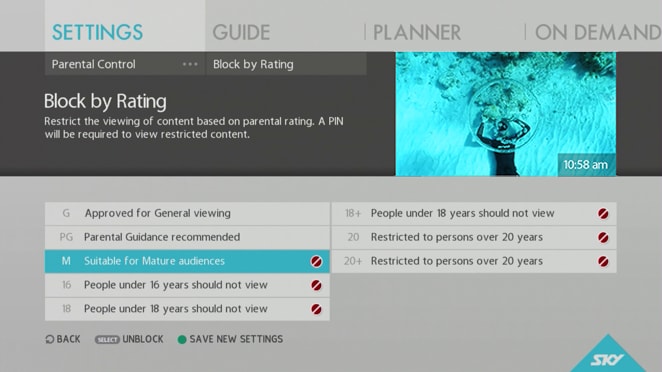
- Press the 'green button' to save new settings.
Find out more on Programme Classifications and Audience Advisories.


