Self-installation means that you will set up your New Sky Box in your home - no need for a Sky Technician because it’s nice and easy to tackle on your own. You can set up your New Sky Box using our nifty set-up guides and helpful online videos.
In this article:
What should be included in my New Sky Box?
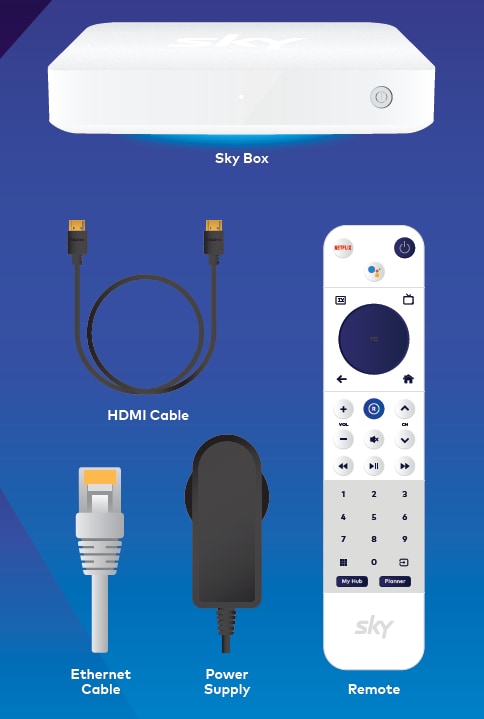
Your New Sky Box will arrive all ready for you to self-install. Included in the box:
- Your New Sky Box
- HDMI cord
- Ethernet Cable
- Power supply
- Remote Control
- A Sky Box Quick Start Guide which takes you through the set up step by step
How do I set up my New Sky Box?
To start with, if you are replacing your current Sky Box, please unplug all of the cables from your current Sky Box.
Now it’s time to plug everything in.
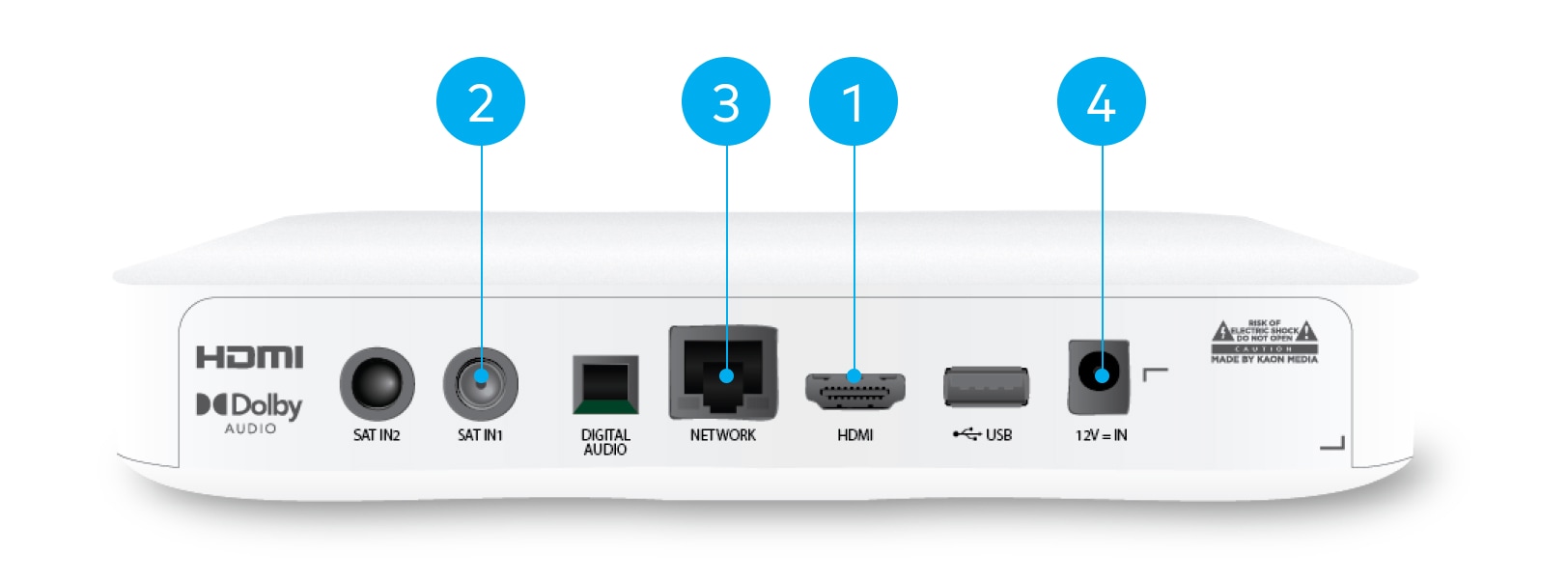
- First, connect your New Sky Box to your TV using the HDMI cable provided. Make sure that it matches the input that is selected on your TV (e.g. HDMI 1). Here’s an example of what this would generally look like on your screen (below)
- Screw in your satellite cable into the SAT IN1 port
- The Network port (at the back of the box) is for your Ethernet Cable which gives you the fastest internet connection. If your Wi-Fi router is close by, plug one end of your Ethernet Cable in here and connect the other to your router. If it’s not close by, you can connect wirelessly later
- Plug in the power cable here (12V = IN) and connect it to a power source. Switch on the power and the system will boot up automatically
- Once your New Sky Box has successfully booted up, you should see a prompt on your TV screen asking you to pair your New Sky Box remote control. Grab your New Sky Box remote control and remove the plastic pull tab sticking out of the battery cover (no need to slide off). This will connect the batteries and begin pairing with your New Sky Box
- Follow the prompts on your TV screen to connect your New Sky Box to the internet, download the latest software, setup your Google Account (optional) and to activate your New Sky Box using your linked My Account.
Information you'll need to get set up on screen:
- Wi-Fi network ID and password (if connecting via wirelessly)
- Sky MyAccount login details (this is the same as your Sky Go login)
- Google Account name and password (optional).
During activation, on screen prompts will ask you to scan a QR code. This is easy to do. Simply use your mobile phone camera to scan. Once you focus your camera on the QR code, it will give a small pop-up to open the link in the default web-browser. From there, you begin the activation process.
Please do NOT use any 3rd party QR & Barcode Scanner app as some of these apps ask you to add credit card details. Note Sky never asks for Credit Card information in this manner.
The QR code just needs your mobile camera to scan.
Note: If you are having trouble activating your Sky Box ensure you have followed all the steps above including setting up your My Account. If you are still having trouble at this point, please contact us for further assistance.
Connecting your New Sky Box to the internet
You must have an internet connection in your home, for your New Sky Box to work. There are two ways to connect your Sky Box to the internet:
- The first is through plugging your Ethernet Cable straight into your Sky Box. If your Wi-Fi router is close by, plug one end of your Ethernet Cable in here and the other to your Sky Box. This will give you the best possible connection. If it’s not close by, you will have to connect wirelessly through the on-screen guided set up
- The second is through the guided set up. Once the Sky Box is installed and powered on, the on-screen set up will guide you through connecting your internet. You will be asked to select your Wi-Fi network and then enter the password, so make sure you have those ready. If you still need additional support, please get in touch with us on 09 525 5555, email, or Live Chat (via My Account). Don’t worry, once you contact us, we will walk you through it step by step on screen when you’re setting it up.
If I’m a Sky Broadband customer, where can I find my password?
Your Sky Wi-Fi password can be found on the bottom of your Sky Wi-Fi router or on the fridge magnet supplied. If you’ve changed the Wi-Fi password and can’t remember it, you’ll need to call our Customer Service Crew on (09) 525 5555 to walk you through a factory reset.
If I’m not a Sky Broadband customer, where can I find my password?
Your Wi-Fi password may be located on a sticker at the bottom/on the back of your Wi-Fi router. If not, or you have changed your Wi-Fi password and can’t remember it, you’ll need to call your broadband provider to help you with this.
What should I do if I see "no internet connection" but can play other apps like YouTube?
If you encounter a "no internet connection" message despite having connectivity, consider resetting your new Sky Box to resolve the problem. Start by attempting a simple restart of the box without losing any saved settings, app configurations, or recordings. To do this, disconnect and then reconnect the power cable to the New Sky Box. Alternatively, you can perform the restart through the screen using your remote. First, press the 'My Hub' button located at the bottom left of the remote. Navigate upwards and to the right until you highlight "Android Settings," then select it. Scroll down to "Device Preferences" and press 'Select.' From there, scroll down and choose the ‘Restart’ option.
If this doesn't resolve the issue, or if it persists, you might need to perform a factory reset. For more information and assistance, please contact us at (09) 525 5555.