Use one of the options below to purhcase a pay per view event on Sky Arena and you're all set to watch. For purchases using the New Sky Box, Sky Pod or the old Sky Box, your box must be connected to the internet.
On your new Sky Box or Sky Pod
- Using your Sky remote, go to channel 065 and press OK to view more options
Note: Purchasing Sky Arena Events will not be available if your internet connection is lost.
- Highlight the Purchase for $xx.xx button and press OK
- If you haven't already set up a Parental PIN, you'll be prompted to create one before continuing
- Enter your Parental PIN, then press OK
- A confirmation message will appear to let you know your purchase was successful
- You're all set and ready to watch the event
On your old Sky Box
Press 'Select' button while on Sky Arena Channel 065 to find the event you're after and follow the on-screen prompts. You will need your Sky Box PIN to confirm the purchase.
If you're still not able to purchase Sky Arena event using your remote control, note the error code that appears on the screen and contact us at 09 525 5555 for further instructions.
Head over to prevent accidental pay per view bookings if any made by remote control.
My Account (website)
Follow the steps below to book a Sky Arena event via My Account (website). Not registered yet? Head over to how do I set up My Account.
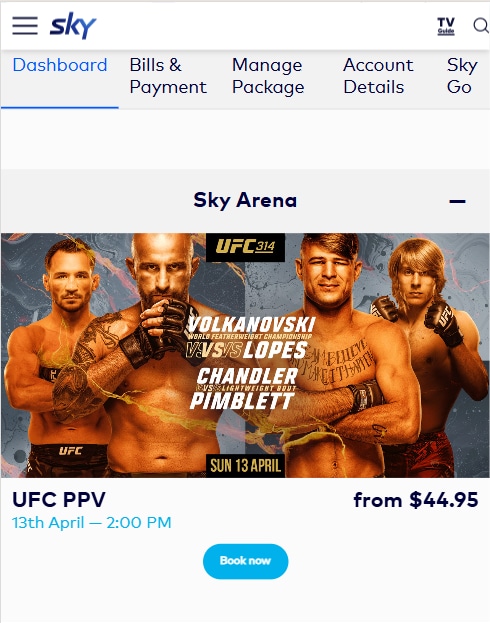
- Log in to My Account and on the 'Dashboard' tab scroll down to the 'Pay per view' section and look for 'Sky Arena'
- Find the event you're after and click 'Book Now'
(The next pop-up box will give you a synopsis, screen times and charge)
- Once you've made your selection, click 'Review Booking' to review
- Click on 'Confirm Booking' to complete your purchase, or 'Change Booking' to go back
(The Sky Arena event will be available on all Sky Boxes linked to your account, once you complete the booking process)
My Account app
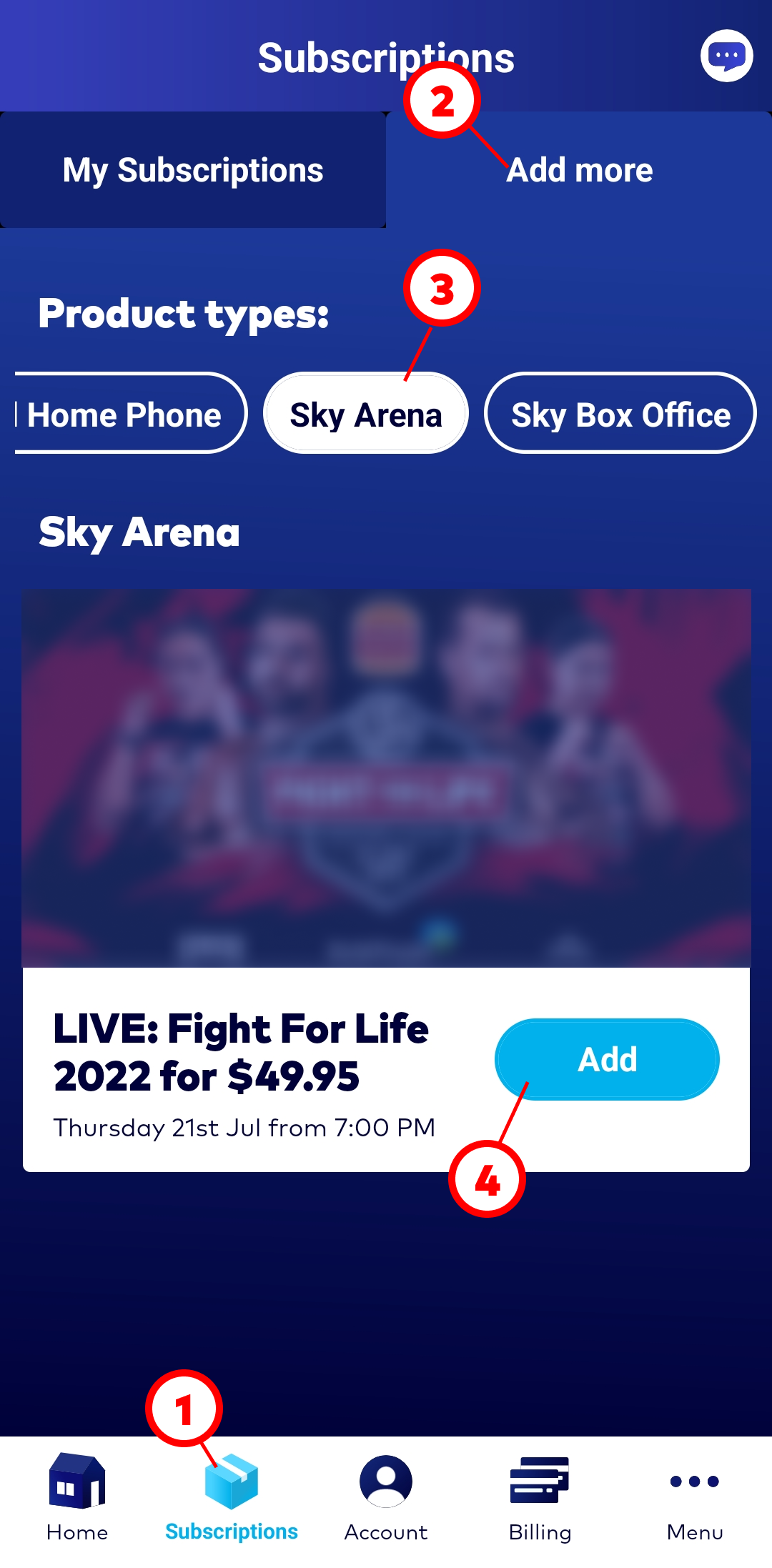
With the My Account app you can easily find must-see live pay per view sports events coming up in the next 7 days on Sky Arena and simply book with just a couple of clicks:
- Open the My Account app on your cell phone and go to the 'Subscriptions' tab
- On the 'Add more' tab, select 'Sky Arena' and tap 'Add' on the chosen event
(you'll receive a booking confirmation via email and on channel 065)
SMS booking
Before you start, you must register for SMS booking through My Account if you haven't done it yet (in the 'Accounts Details' tab, scroll down to pay per view bookings or by contacting the crew on 09 525 5555. Text booking messages are free to send and receive.
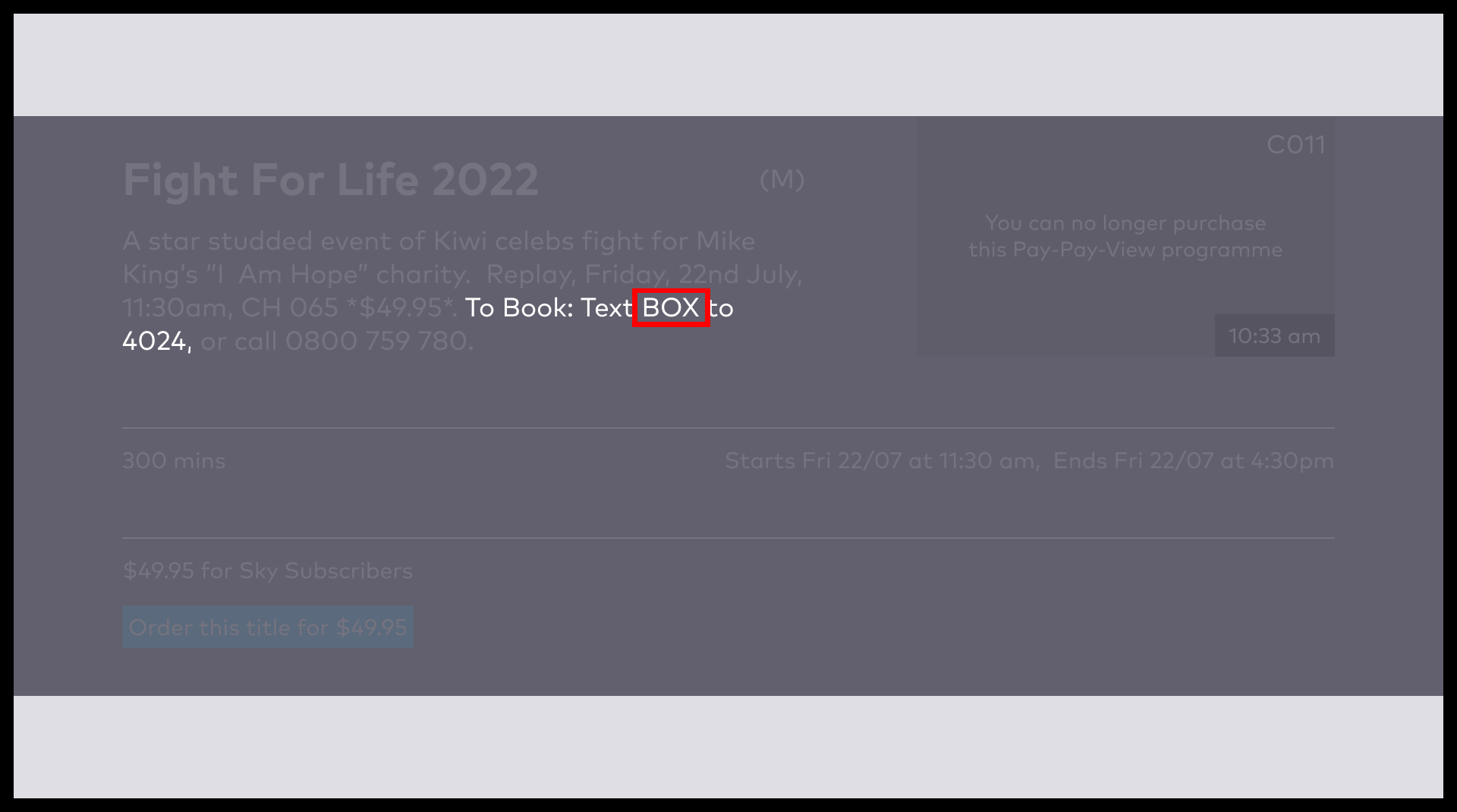
To SMS book, text the keyword for the event you wish to purchase to 4024. You'll be sent a reply confirming that your booking was successful.
Each event has a unique keyword, which can be found on the banner by pressing the 'Select' button on your remote while on Sky Arena channel 065 as per image below (example only).
Having questions about SMS booking? Head over to SMS booking FAQs.
Phone booking
You'll need your Sky account number or your personal phone number along with your Sky account PIN to purchase, then follow the prompts on your TV screen.
Each event on Sky Arena has a unique phone number. To find the banner for the event, press the 'Select' button on your remote control while on Sky Arena channel 065.
Or you can also just call our friendly Sky team on 09 525 5555 to book a pay per view event on Sky Arena.