In this article:
For the information on how to reset new Sky Box head over to Resetting your new Sky Box.Resetting the box is a simple yet effective way to troubleshoot common issues. However, if the box requires a frequent reset to restore the services, it’s best to consider a faulty box replacement as this is a sign of an ongoing issue with the box that is likely to recur, potentially within a few days to a few months.
In some cases, performing a power reset, especially after stormy weather, may help resolve audio and picture issues. For additional troubleshooting of video and audio issues, you can try T100 - Atmospheric Conditions and Sound and Picture Issues troubleshooting steps. However, if these steps don't resolve the problem, a technician visit will be required to investigate further.
Sky Box
There are two ways to reset the Sky Box: a soft reset and a power reset. If the box doesn't power on, ensuring there is no issue with your power socket, you can try the troubleshooting steps for when there are no lights on the box.
Soft reset is performed by using the power button on the box.
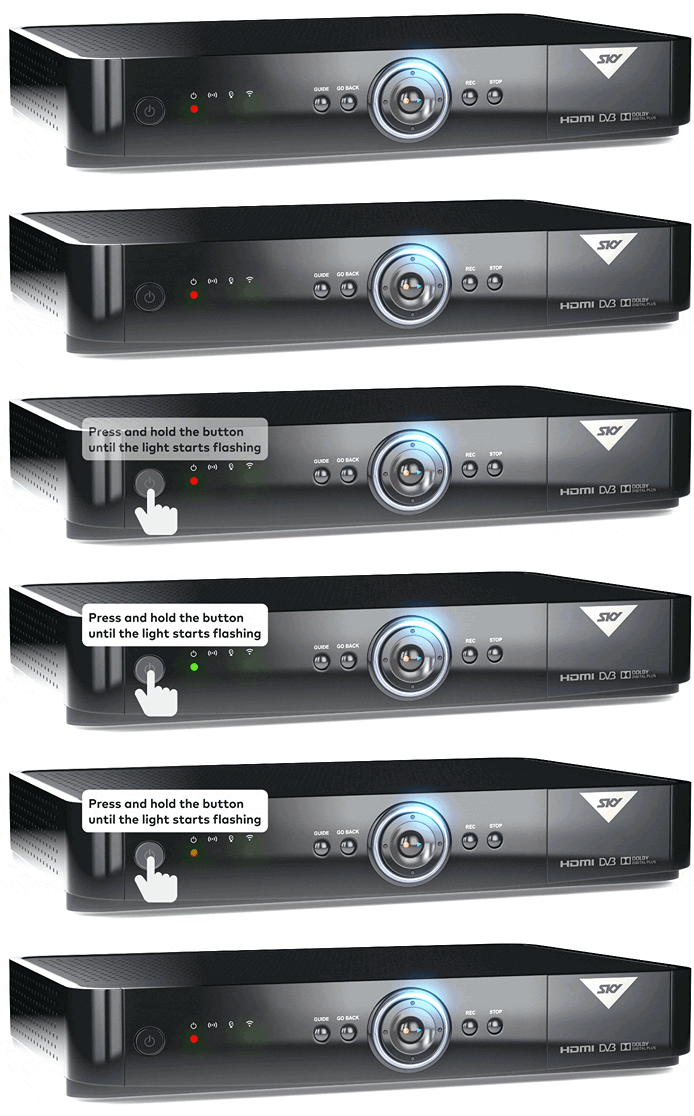
Press and hold the Power button on the box for approximately five seconds until the red light flashes to green. All lights will turn off, and the box will go through a reboot, which should take approximately 1-3 minutes.
Power reset is executed by disconnecting the box from the power source, and this approach is the technicians' preferred method for resetting the box. To initiate a power reset, please follow the steps below:
-
Unplug the power lead cable using one of the methods/options shown in the image below. Wait for approximately 1 minute, then plug it back in.
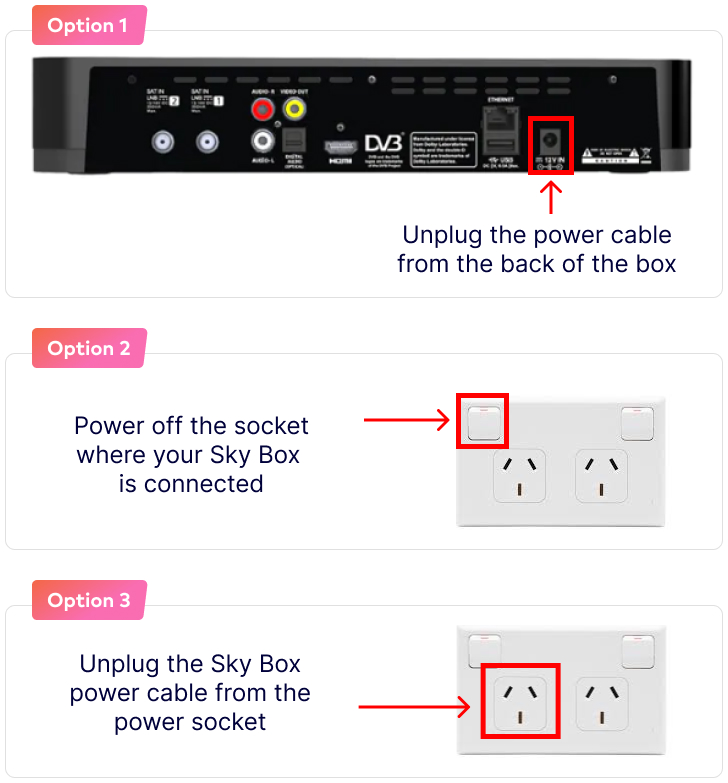
- Double-check that all cables at the back of the box are still firmly plugged in. The reboot should take approximately 1-3 minutes.
My Sky HDi/+ Box
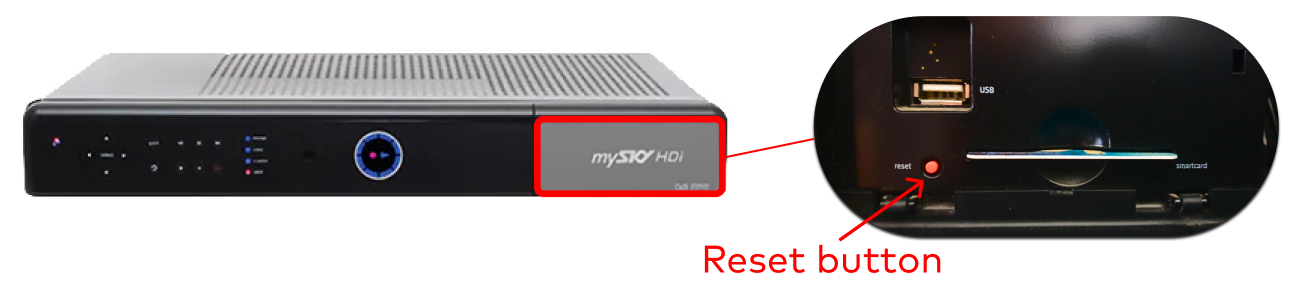
- Open the pannel on the right hand side of the box. Then press and hold the red Reset button for approximately five seconds until all the lights appear on the box.
- All the lights will turn off and the box will go through a reboot.
- The reboot should take approximately 1-3 minutes and will return you back to the channel you last viewed.
- If the above does not help, unplug the box from the power point. When you do this the lights on the front of the box should go out.
- Wait at least a minute.
- Double-check that all the leads on the back of the box are still plugged in firmly.
- Plug the box back into the power point.
- It may take up to a minute before the box is ready to be switched back on.
Make sure the Sky Box setup is correctly done if your box had been moved or unplugged before the problem. If you're still having problems or require additional support, please contact us and our team will help you further.


